
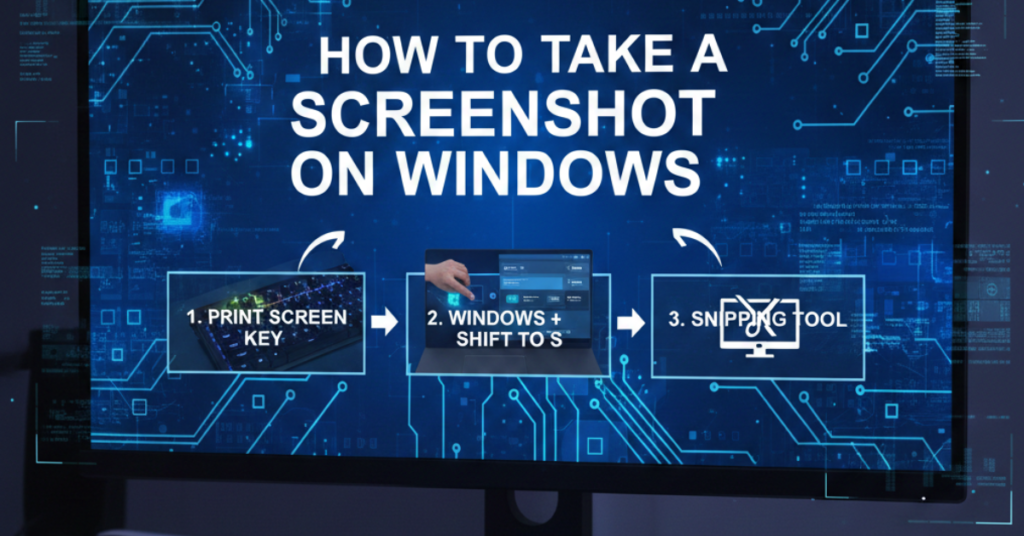

Ever needed to capture an error message, save an online receipt, or share something funny on your screen? Knowing how to take a screenshot on Windows is one of those simple skills that saves time every single day.
The good news? Windows makes it incredibly easy — once you know the right shortcuts.
In this complete guide, you’ll learn:
-
How to take a screenshot on Windows 11
-
How to take a screenshot on Windows 10
-
How to take a screenshot on a PC or HP laptop
-
Plus quick instructions for Mac, Chromebook, Android, and iPhone
Let’s start with Windows.
How to Take a Screenshot on Windows (Quickest Methods)
There are several built-in ways to capture your screen on a Windows computer. You don’t need extra software.
Method 1: Press the Print Screen (PrtScn) Key
This is the fastest way.
-
Press PrtScn on your keyboard.
-
Open Paint, Word, or any editor.
-
Press Ctrl + V to paste.
-
Save the file.
This captures the entire screen.
If you’re searching how to take a screenshot on a computer quickly, this is the simplest method.
How to Take a Screenshot on Windows 11
Windows 11 includes a more advanced built-in tool.
Use Windows + Shift + S
-
Press Windows key + Shift + S
-
Your screen will dim
-
Select:
-
Rectangular snip
-
Freeform snip
-
Window snip
-
Fullscreen snip
-
-
The screenshot copies to clipboard
-
Click the notification to edit or save
This opens the Snipping Tool, which is built directly into Windows 11.
If you’re specifically looking for how to take a screenshot on Windows 11, this is the best option.
How to Take a Screenshot on Windows 10
The steps are almost identical.
You can use:
-
PrtScn
-
Alt + PrtScn (captures only active window)
-
Windows + Shift + S
Or:
Windows + PrtScn (Auto Save Method)
-
Press Windows + PrtScn
-
Screen flashes briefly
-
Screenshot saves automatically to:
Pictures → Screenshots
If you’re wondering how to take a screenshot on Windows 10, this auto-save shortcut is a favorite.
How to Take a Screenshot on a PC or HP Laptop
Many users search:
-
how to take a screenshot on pc
-
how to take a screenshot on a pc
-
how to take a screenshot on hp laptop
Good news — it’s the same process.
On some HP laptops, you may need to press:
Fn + PrtScn
If your Print Screen key shares a function with another key, hold Fn while pressing it.
How to Take a Screenshot on Computer Without Print Screen
If your keyboard doesn’t have a PrtScn key:
-
Press Windows + Shift + S
-
Use Snipping Tool
-
Or open Snipping Tool manually:
-
Search “Snipping Tool” in Start
-
Click “New”
-
Capture your selection
-
This works on both Windows 10 and Windows 11.
How to Take a Screenshot on Mac
While this guide focuses on Windows, many people also search how to take a screenshot on mac or how to take a screenshot on a mac.
Here are the basics:
-
Command + Shift + 3 → Full screen
-
Command + Shift + 4 → Select area
-
Command + Shift + 5 → Screenshot toolbar
Mac automatically saves screenshots to the desktop.
How to Take a Screenshot on Chromebook
For Chromebook users:
-
Ctrl + Show Windows key → Full screen
-
Ctrl + Shift + Show Windows → Partial screen
If you’re searching how to take a screenshot on chromebook without windows key, use:
-
Ctrl + Shift + F5 (on newer models)
Screenshots save automatically to the Downloads folder.
How to Take a Screenshot on iPhone
Quick guide for mobile users searching how to take a screenshot on iphone:
-
With Face ID:
Press Side button + Volume Up -
With Home button:
Press Home + Side button
The screenshot saves to Photos.
How to Take a Screenshot on Android
For those searching how to take a screenshot on android:
-
Press Power button + Volume Down
-
Hold for 1–2 seconds
Most Android devices follow this method.
Advanced Screenshot Tips for Windows
If you want to level up:
1. Use Snipping Tool Delay
Capture dropdown menus with a timer.
2. Use Game Bar
Press Windows + G for gaming screenshots.
3. Use Third-Party Tools
Apps like:
-
Greenshot
-
Lightshot
-
ShareX
Offer editing and annotation features.
Where Do Windows Screenshots Go?
If saved automatically:
Pictures → Screenshots
If copied to clipboard:
You must paste manually before saving.
FAQs About How to Take a Screenshot
How do I take a screenshot on Windows quickly?
Press Windows + PrtScn to capture and auto-save instantly.
Why is my Print Screen not working?
Possible reasons:
-
Fn key required
-
Keyboard driver issue
-
Clipboard full
-
Third-party software conflict
How do I screenshot only one window?
Press Alt + PrtScn to capture just the active window.
Can I edit screenshots on Windows?
Yes. Use:
-
Snipping Tool
-
Paint
-
Photos app
How to take a screenshot on a computer without keyboard?
Use the Snipping Tool via Start menu search.
Final Thoughts: Screenshot Like a Pro
Learning how to take a screenshot on Windows is one of those small digital skills that makes everyday computing easier.
Here’s the quick recap:
-
PrtScn → copy entire screen
-
Windows + PrtScn → auto-save
-
Windows + Shift + S → advanced snipping
-
Alt + PrtScn → active window only
Whether you’re using Windows 11, Windows 10, a PC, or an HP laptop, the tools are already built in.
Now that you know how to take a screenshot on a computer, you can capture anything in seconds.