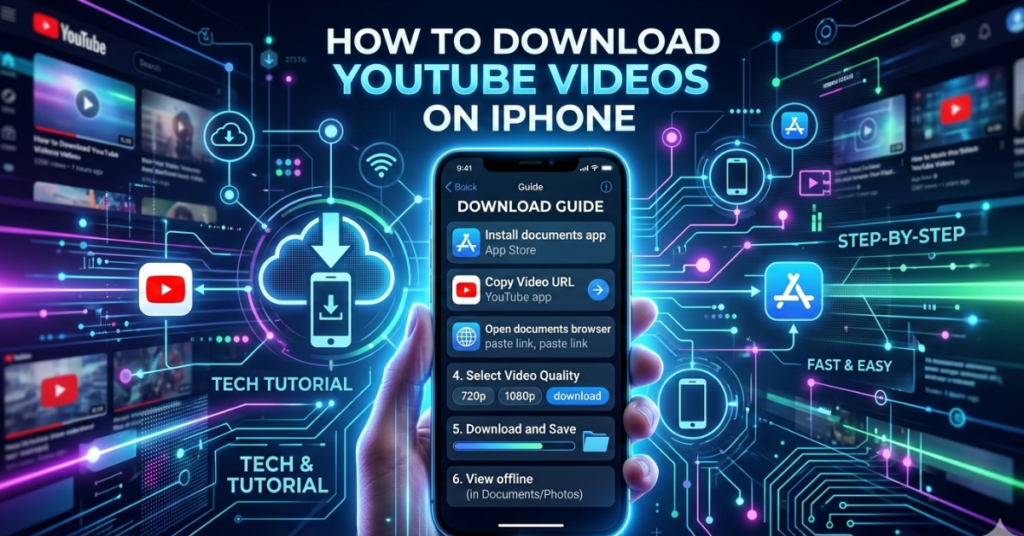

Ever found the perfect video for a flight, road trip, or offline viewing—only to realize you don’t know how to download YouTube videos on iPhone?
You’re not alone. Millions of users search for ways to download YouTube videos on iPhone, especially for offline access. In this guide, we’ll walk through the official method, discuss whether you can download YouTube videos on iPhone without Premium, and clarify what’s actually safe and legal.
Let’s break it down clearly and honestly.
The Official Way: Download Using YouTube Premium
The safest and most reliable method for how to download YouTube videos on iPhone is through YouTube Premium.
What YouTube Premium Offers
With a Premium subscription, you can:
-
Download videos directly inside the app
-
Watch offline without internet
-
Enjoy ad-free playback
-
Play videos in the background
Steps to Download Videos with Premium
-
Open the YouTube app on your iPhone.
-
Find the video you want.
-
Tap the Download button below the video.
-
Choose video quality (if prompted).
-
Access it later under Library → Downloads.
It’s that simple—and fully compliant with YouTube’s terms of service.
How to Download YouTube Videos on iPhone Without Premium
Now let’s address the most searched question:
How to download YouTube videos on iPhone without Premium?
Here’s the honest answer:
You cannot officially download YouTube videos directly to your iPhone’s camera roll without Premium.
However, there are a few important distinctions to understand.
Option 1: Using Third-Party Websites (Use With Caution)
Some websites claim to help you:
-
Paste a YouTube link
-
Convert it to MP4
-
Download it via Safari
While technically possible in some regions, this method:
-
Often violates YouTube’s terms
-
May expose you to malware
-
Includes intrusive ads
-
Sometimes stops working due to policy changes
If you choose this route, be extremely cautious and avoid entering personal information.
Option 2: Screen Recording (Personal Use Only)
iPhones include a built-in screen recording feature.
Steps:
-
Enable Screen Recording in Settings → Control Center.
-
Play the YouTube video.
-
Start screen recording.
-
Stop recording when finished.
The video saves to your Photos app.
Important: This method is generally for personal use only. Distributing copyrighted content is illegal.
How to Download YouTube Videos on iPhone for Free (Realistic Options)
If you’re specifically searching for how to download YouTube videos on iPhone for free, here are your safest options:
Free Trial of YouTube Premium
YouTube often offers a free trial period. This gives you:
-
Legal downloads
-
Offline viewing
-
Full Premium benefits
It’s the safest free method available.
How to Download YouTube Videos on iPhone Without App
Some users search for how to download YouTube videos on iPhone without app.
Technically:
-
You cannot install YouTube downloads directly through Safari without using an app or website converter.
-
iOS restrictions prevent direct file downloads from YouTube’s servers.
Apple’s ecosystem is designed for app-based functionality, which limits browser-based downloading of streaming content.
Understanding Legal and Copyright Considerations
Before downloading any content, remember:
-
Most YouTube videos are copyrighted.
-
Downloading outside official methods may violate terms.
-
Redistribution can result in copyright strikes or legal action.
Always respect creators’ rights.
Storage Tips for Downloaded Videos
Offline downloads can take space quickly.
To manage storage:
-
Choose lower video quality for smaller files
-
Delete watched videos regularly
-
Monitor iPhone storage under Settings → General → iPhone Storage
This keeps your device running smoothly.
Bonus: How to Edit YouTube Videos on iPhone
If your goal is not just downloading—but creating—here’s how to edit YouTube videos on iPhone.
You can use:
-
iMovie
-
CapCut
-
InShot
Basic Editing Steps in iMovie:
-
Open iMovie.
-
Tap Create Project.
-
Import your video clips.
-
Trim, cut, and adjust transitions.
-
Add music or text overlays.
-
Export in HD quality.
Editing on iPhone is surprisingly powerful now—you don’t need a computer anymore.
Pros and Cons of Different Methods
| Method | Safe | Legal | Permanent Download | Recommended |
| YouTube Premium | ✅ | ✅ | In-App Only | ⭐⭐⭐⭐⭐ |
| Free Trial | ✅ | ✅ | Temporary | ⭐⭐⭐⭐ |
| Screen Recording | ⚠ | Limited | Yes | ⭐⭐ |
| Third-Party Sites | ❌ | Risky | Yes | ❌ |
Premium remains the safest long-term solution.
FAQs
1. Can I download YouTube videos directly to my iPhone gallery?
Only through screen recording or third-party tools. Official downloads stay inside the YouTube app.
2. How to download YouTube videos on iPhone without Premium?
You can use screen recording for personal use or third-party websites (with risk). There’s no official free download feature without Premium.
3. Is it legal to download YouTube videos?
Downloading for offline viewing within the YouTube app is legal. Downloading via unofficial tools may violate terms and copyright laws.
4. Why can’t I see the download button?
The video creator may have disabled downloads, or the feature is restricted in your region.
5. How to download YouTube videos on iPhone for free safely?
Use YouTube Premium’s free trial for the safest option.
Conclusion: The Smart Way to Download YouTube Videos on iPhone
When it comes to how to download YouTube videos on iPhone, the official YouTube Premium method is hands-down the safest and most reliable.
While workarounds exist, they come with risks—whether it’s malware exposure, copyright issues, or policy violations. If you value your device security and account safety, stick to approved solutions.
If you’re serious about creating content, consider learning more about how to edit YouTube videos on iPhone using powerful mobile apps. With the right tools, your iPhone can be both a media player and a content studio.