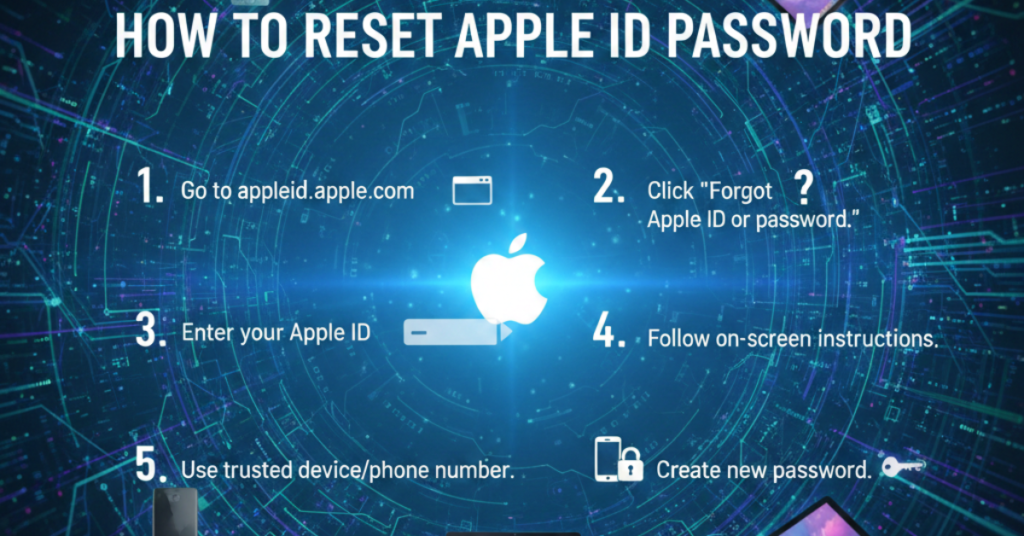

Forgetting your Apple ID password can feel like being locked out of your own digital life. iCloud, App Store, backups, photos—everything revolves around it. The good news? Learning how to reset Apple ID password is straightforward once you know the correct steps.
In this guide, we’ll walk through every method—whether you want to know how to reset Apple ID password with email, how to reset Apple ID password without phone number, or even how to reset Apple ID password on iPad. We’ll also cover related resets for Apple Watch and Apple TV, since those often come up during password recovery.
Let’s get you back in.
Why Your Apple ID Password Matters
Your Apple ID connects you to:
-
iCloud backups
-
App Store purchases
-
Apple Music & subscriptions
-
Find My iPhone
-
Device syncing
If you forget your credentials, resetting quickly protects your account from unauthorized access.
How to Reset Apple ID Password (Standard Method)
This is the most common method if you still have access to your device.
On iPhone or iPad:
-
Open Settings
-
Tap your name at the top
-
Select Password & Security
-
Tap Change Password
-
Enter your device passcode
-
Create a new password
That’s it. This method works if you’re already signed in.
How to Reset Apple ID Password With Email
If you’re logged out or using a browser:
-
Visit Apple’s official account recovery page
-
Enter your Apple ID (email address)
-
Select “Forgot Password”
-
Choose Email authentication
-
Follow the reset link sent to your inbox
This is the easiest option if you still have access to your registered email.
How to Reset Apple ID Password Without Phone Number
If you no longer have access to your trusted phone number, don’t worry.
Here’s how to reset Apple ID password without phone number:
-
Go to Apple’s account recovery page
-
Enter your Apple ID
-
Select “Can’t use this number?”
-
Follow account recovery prompts
-
Provide verification details
Apple may initiate an account recovery waiting period for security purposes. This can take a few days.
How to Reset Apple ID Password Without Phone
If you don’t have your phone at all:
-
Use a friend’s device
-
Visit an Apple Store
-
Access iCloud from a trusted browser
The key is verifying your identity through trusted devices or recovery email.
How to Reset Apple ID Password on iPad
If you’re using an iPad:
-
Open Settings
-
Tap your Apple ID at the top
-
Go to Password & Security
-
Tap Change Password
-
Enter passcode
-
Set new password
The process mirrors the iPhone steps.
How to Reset Apple Password for Apple Watch
Sometimes password problems affect connected devices.
How to Reset Apple Watch Password
If you forgot your Apple Watch passcode:
-
Place the watch on its charger
-
Press and hold the side button
-
Tap Erase all content and settings
-
Confirm reset
Afterward, you can re-pair it with your iPhone.
How to Reset Apple Watch Without Paired Phone and Password
If you don’t have the paired iPhone:
-
Put Apple Watch on charger
-
Hold the side button until power options appear
-
Press and hold Digital Crown
-
Tap Reset
This erases the watch completely.
How to Reset Apple Watch to Factory Settings
You can also reset via iPhone:
-
Open the Watch app
-
Go to General
-
Tap Reset
-
Select Erase Apple Watch Content and Settings
How to Reset Apple TV and Apple TV Remote
Sometimes Apple ID password issues surface during Apple TV setup.
How to Reset Apple TV
-
Go to Settings
-
Select System
-
Tap Reset
-
Choose Reset and Update
This restores factory settings.
How to Reset Apple TV Remote
If the remote isn’t responding:
-
Hold TV/Control Center button + Volume Down for 5 seconds
-
Re-pair if necessary
This fixes most remote syncing issues.
Tips for Creating a Strong Apple ID Password
After learning how to reset Apple ID, make sure your new password is secure.
A strong password should:
-
Be at least 12 characters
-
Include uppercase and lowercase letters
-
Contain numbers and symbols
-
Avoid common words or birthdays
Also, enable two-factor authentication for added security.
Common Mistakes to Avoid
When resetting:
-
Don’t use public Wi-Fi
-
Avoid clicking unofficial reset links
-
Don’t reuse old passwords
-
Keep recovery information updated
Account security is just as important as regaining access.
FAQs About How to Reset Apple ID Password
1. How long does Apple ID recovery take?
If using standard reset methods, it’s immediate. Account recovery without phone access may take several days.
2. Can I reset Apple ID password without email or phone number?
It’s difficult. You’ll need account recovery verification through Apple Support.
3. Will resetting my Apple ID delete data?
No. Resetting your password does not delete iCloud data.
4. How to reset Apple Watch without paired phone and password?
Use the side button and Digital Crown reset method while the watch is on the charger.
5. How to reset Apple TV if it’s frozen?
Use Settings > System > Reset, or unplug and restart if unresponsive.
Final Thoughts
Knowing how to reset Apple ID password can save you from hours of frustration. Whether you’re resetting via email, without a phone number, or directly on an iPad, Apple provides multiple secure recovery options.
If your password issue affects devices like Apple Watch or Apple TV, resetting those properly ensures everything syncs correctly once your Apple ID access is restored.
Take a few minutes today to:
-
Update your recovery email
-
Confirm your trusted phone number
-
Enable two-factor authentication
A little preparation now prevents major headaches later.