
If your AirPods won’t connect, keep cutting out, or refuse to pair with your device, don’t panic. Learning how to reset AirPods can fix most common issues in under two minutes.
Whether you’re using standard AirPods, how to reset AirPods Pro, how to reset AirPods Max, or even newer versions like how to reset AirPods 4, the process is simple once you know the correct steps.
In this complete guide, we’ll walk through reset instructions for every model and explain when and why a reset is necessary.
Why You Might Need to Reset AirPods
Before diving into the steps, let’s quickly look at why resetting helps.
Common problems include:
-
AirPods not connecting
-
One AirPod not working
-
Audio lag or glitches
-
Battery percentage not showing
-
Switching issues between Apple devices
A factory reset clears Bluetooth pairing data and restores default settings—often solving these issues instantly.
How to Reset AirPods (1st, 2nd, 3rd & 4th Gen)
If you’re searching for how to reset AirPods 2 or how to reset AirPods 4, the process is nearly identical for all standard models.
Step-by-Step Instructions:
-
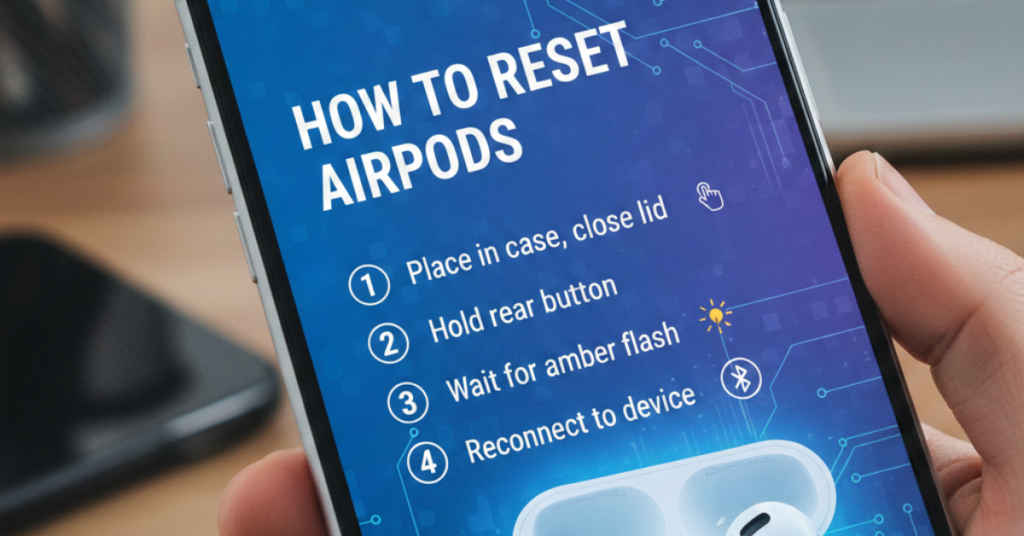
Place AirPods in the charging case
Close the lid and wait 30 seconds. -
Open the lid
Keep the AirPods inside. -
Go to Bluetooth settings on your iPhone
Tap the “i” icon next to your AirPods. -
Select “Forget This Device”
Confirm removal. -
Press and hold the setup button
Hold the button on the back of the case for about 15 seconds. -
Wait for the light to flash amber, then white
This indicates a successful reset.
Your AirPods are now ready to pair again.
How to Reset AirPods Pro
If you’re wondering how to reset AirPods Pro or how to reset AirPods Pro 2, the process is almost identical to standard models.
Reset Instructions:
-
Place AirPods Pro in the charging case.
-
Close the lid for 30 seconds.
-
Open the lid.
-
Forget the device in Bluetooth settings.
-
Press and hold the back button for 15 seconds.
-
Wait for the amber-to-white flashing light.
That’s it. The AirPods Pro and AirPods Pro 2 reset process is the same.
How to Reset AirPods Max
Resetting AirPods Max works differently because they don’t use a charging case button.
If you’re searching for how to reset AirPods Max, follow these steps:
Soft Reset (Fix Minor Issues)
-
Press and hold the Noise Control button and Digital Crown together.
-
Hold for about 10 seconds.
-
Release when the LED flashes amber.
Factory Reset (Full Reset)
-
Press and hold both buttons again.
-
Continue holding past the amber light.
-
Release when the LED flashes white.
The white light indicates the AirPods Max have been fully reset and are ready to pair again.
When Resetting Doesn’t Fix the Problem
If resetting doesn’t solve your issue, try:
-
Updating your iPhone to the latest iOS
-
Cleaning the charging contacts
-
Checking battery levels
-
Restarting your device
-
Testing with another Apple device
Persistent issues may require Apple Support assistance.
Tips to Prevent Future AirPods Problems
After learning how to reset AirPods, here’s how to avoid needing frequent resets:
-
Keep firmware updated
-
Store AirPods in the case when not in use
-
Avoid exposing them to moisture
-
Clean charging ports regularly
-
Disconnect unused Bluetooth devices
Regular maintenance reduces connectivity issues significantly.
Read also <<< TheGameArchives Console
FAQs About How to Reset AirPods
1. Will resetting AirPods delete everything?
Yes, a reset removes all pairing data and restores factory settings. You’ll need to reconnect them to your devices.
2. How do I know my AirPods reset worked?
The status light will flash amber, then white. That confirms a successful reset.
3. How to reset AirPod Pro 2 specifically?
The process is the same as AirPod Pro:
-
Forget device
-
Hold case button for 15 seconds
-
Wait for amber then white light
4. How to reset AirPods 2?
Follow the standard AirPod reset process using the back button on the charging case.
5. How to reset AirPods 4?
AirPod 4 follow the same reset method as other standard AirPod models.
Final Thoughts
Knowing how to reset AirPods is one of the simplest troubleshooting skills every Apple user should have. Whether you’re resetting AirPods Pro, AirPods Max, AirPods 2, or AirPods 4, the process takes less than a minute and solves most common problems.
If your AirPod are acting up, try a reset before assuming they’re broken. It’s quick, safe, and often surprisingly effective.
Still having trouble? Consider checking firmware updates or contacting Apple Support for further diagnostics.